Settings reference
Settings is where you manage the app's connection to Amazon, decide which marketplaces your store maps to, choose which AI engine writes your listing content, and look after the data the app stores in your Shopify store. It is organised into five tabs.
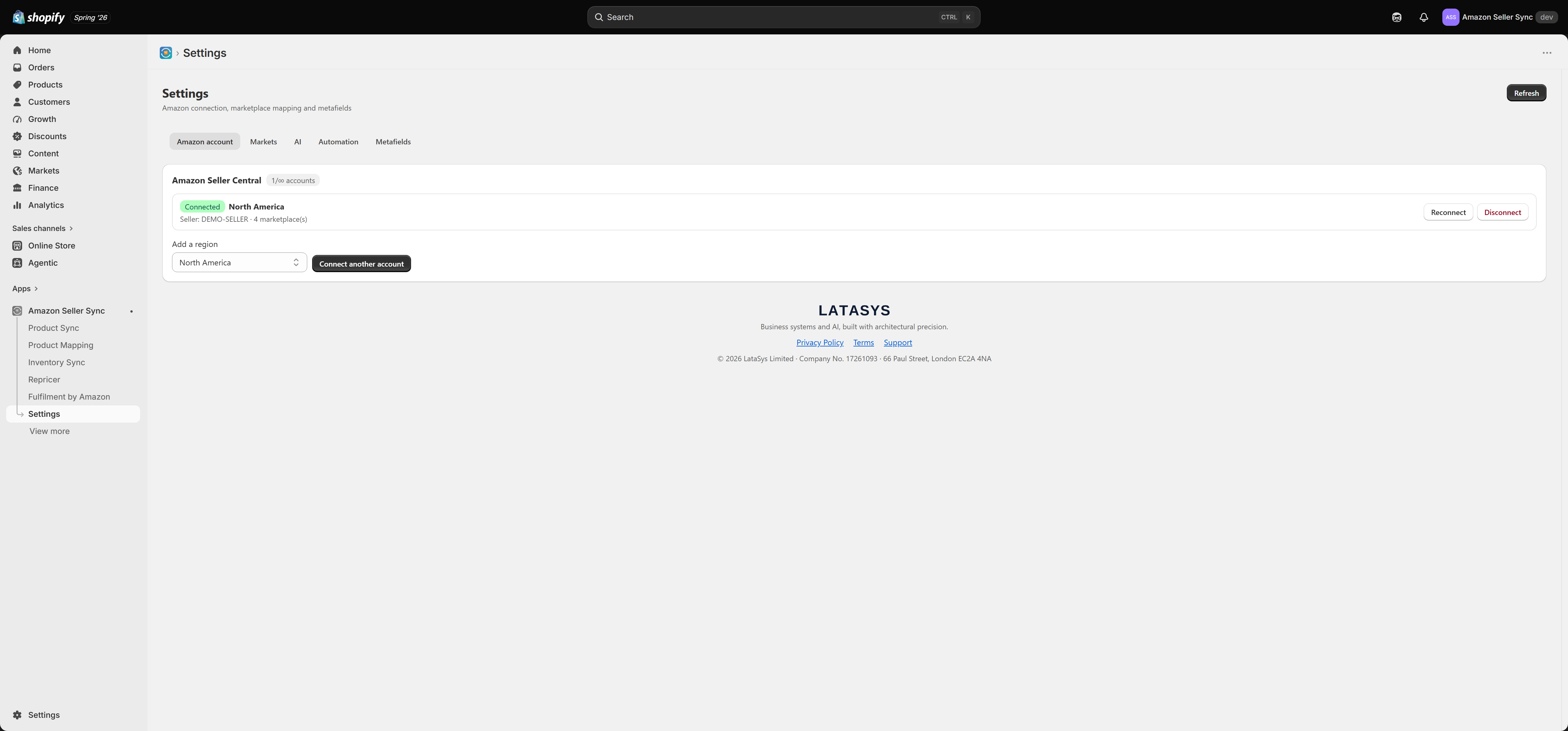
Two of the tabs change how the app behaves (Markets and AI), one manages your connection (Amazon account), one is purely informational (Automation), and one is a maintenance tool you will rarely need (Metafields).
Note
Your SKUs and barcodes are edited on the Shopify product page, never in the app. The app only reads them, so that Shopify stays the single source of truth for your product identity. If a barcode is wrong, fix it in Shopify and the app will pick up the change.
Amazon account
This tab manages your connection to Amazon Seller Central. Each account you have connected appears as its own row showing the Amazon region it belongs to, its seller ID, and how many Amazon marketplaces that authorisation covers.
A badge shows how many accounts you are using against how many your plan allows. The Free, Growth and Growth + Markets plans allow a small number; the Full plan allows many. If you try to connect beyond your allowance the app tells you: "Account limit reached ({limit}). Upgrade or add an account slot."
The actions available on each account are:
- Connect starts the Amazon authorisation flow for a new region. You sign in to Seller Central and approve the app. The marketplaces that account is authorised for are discovered automatically at that moment.
- Reconnect refreshes an existing authorisation. Use this if Amazon's permission has expired or been revoked, or if the app has started reporting authorisation failures against that account.
- Disconnect removes the account from the app. This does not touch anything on Amazon. Your listings stay live and remain yours in Seller Central.
Because Amazon issues one authorisation per region, selling in both the United States and Germany usually means connecting two accounts. See Amazon accounts and regions and Using multiple Amazon accounts.
Markets
This tab decides which Amazon marketplace the app treats as "yours" for any given Shopify market.
Default (home) marketplace is the single most important setting on this page. It is the marketplace used for automated price sync, for the home price shown on your storefront, and as the fallback whenever no more specific mapping applies. Every plan can set it, including Free.
Per-market overrides let you point an individual Shopify market at a specific Amazon marketplace. If you have a Shopify market for Germany, you can map it to Amazon.de so that German shoppers see the German Amazon price and a German Amazon link rather than the home one.
On the Free plan the override selectors are locked, so you get the default marketplace only. Paid plans unlock overrides up to their limit, and a usage line on the tab shows how many you have used. Full detail is in Market mappings.
Warning
The setup checklist step "Choose your marketplaces" only completes when you explicitly save a market mapping. A marketplace that the app inferred from your connected account does not count. Open this tab, choose your default marketplace, and save it.
AI
This tab controls which AI writes your listing content when you use Translate, Spell-check, SEO & Rufus, or Recommendations on a product.
The built-in engine needs no setup at all. The tab shows its status and how many AI actions you have used out of your plan's monthly allowance. Free plans have no allowance, so AI is unavailable until you upgrade or supply your own key.
Bring your own key lets you bypass the monthly allowance entirely and be billed by the AI provider directly. There are three provider options, and you supply the key for whichever one you choose:
- Anthropic (Claude)
- OpenAI (GPT)
- Google (Gemini)
Keys are stored encrypted and are never shown back to you after you save them. If you need to change one, paste a new key over it.
There is also an optional Model override field. Leave it blank and the app picks a sensible model for your provider. Fill it in only if you have a specific model you want to use.
If no AI is configured and your allowance is exhausted or zero, AI actions return: "No AI is available. Add your own API key in Settings."
Automation
This tab is read-only. It is a status panel, not a control panel. It tells you three things:
- Whether scheduled sync is currently running for your shop.
- What the schedule is, meaning how often the app syncs.
- Which Shopify permissions (scopes) the app has been granted.
You cannot change the sync cadence here. Your cadence comes from your plan. Free syncs every 24 hours; Growth, Growth + Markets and Full sync every 6 hours; only Full can buy a faster tier. The complete picture of what runs and when is in Automation and schedule.
If Shopify has not granted the app a permission it needs, this tab warns you and names the missing ones: "Missing: {scopes}. Reopen the app to re-authorize." Closing the app and opening it again from your Shopify Apps menu triggers the re-authorisation prompt and clears the warning.
Metafields
The app writes Amazon data into your Shopify store as metafields, so your theme and other tools can read it. This tab has two buttons.
Ensure definitions is a safe repair. It re-creates any metafield definition that is missing or has been altered, without touching the values already stored. Run it if the theme blocks stop finding data, or after another app has been at your metafield definitions.
Remove definitions + data is destructive. It deletes the app's metafield definitions and the stored Amazon data from your store. Your theme blocks will stop showing prices and Buy on Amazon links, and your price history is gone. Nothing happens to your Amazon listings, which are unaffected.
Warning
If you plan to uninstall the app and you want the Amazon data cleared out of your store, run Remove definitions + data first. Once the app is uninstalled it can no longer reach your store to clean up. See Uninstalling.
Both buttons are explained in full, alongside what each metafield actually holds, in Metafields the app writes.
Related Articles
Uninstalling
Uninstalling the app is straightforward, but the order you do things in matters. There is one piece of housekeeping that can only be done while the app is still installed, and if you skip it you cannot go back and do it afterwards. Before you ...Price sync
Price sync is the heart of Amazon Seller Sync. For every variant you have linked to an ASIN on the Product Mapping page, the app asks Amazon what that product is currently selling for and whether you are winning the Buy Box, then writes the answers ...Amazon accounts, regions and marketplaces
Before you map a single product, it helps to understand how Amazon organises selling accounts. Amazon is not one global shop. It is a set of regional groups of marketplaces, and your Seller Central account belongs to exactly one of those groups. ...Automation and schedule
Most of what the app does happens without you. This page sets out precisely what runs on its own, what triggers it, and what each one needs in order to run at all. It is worth reading once, because "why has nothing happened yet?" is almost always ...Metafields the app writes
Every time the app reads something from Amazon, it has to put that information somewhere your store can use. It uses Shopify metafields. A metafield is simply a labelled piece of extra data attached to a Shopify object, in this case to your product ...