Connecting Amazon Seller Central
Connecting your Amazon Seller Central account is the first step in the setup checklist, and it is the one thing every other feature depends on. Until an account is connected, price sync has nothing to read, Product Sync has nowhere to publish, and Sync now on the Dashboard stays disabled.
The connection is made through Amazon's official seller API (SP-API), using Amazon's own authorisation screen. You sign in to Seller Central, approve the app, and are returned to Shopify. The app never sees your Amazon password.
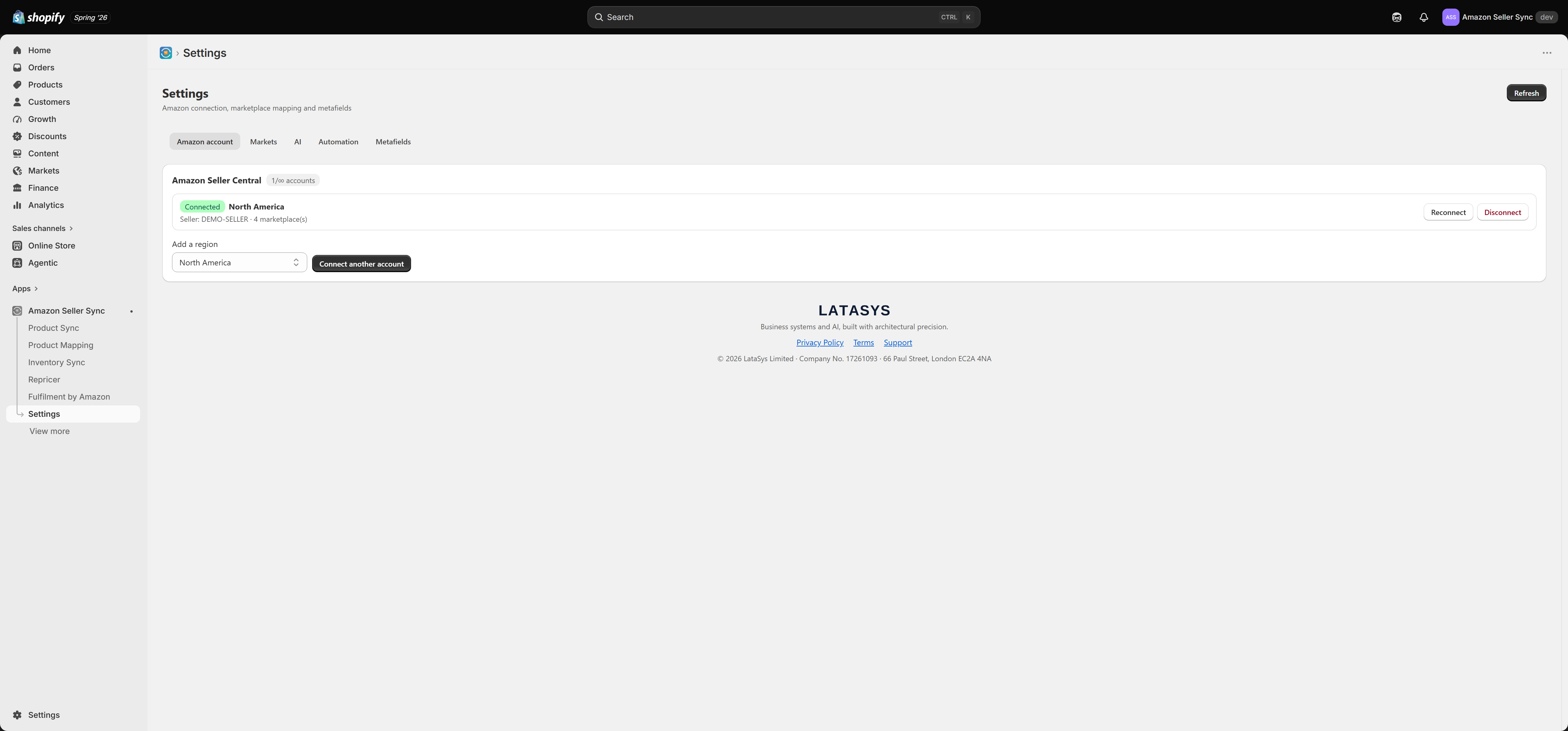
Choosing your region
Amazon splits the world into three SP-API regions, and a Seller Central account belongs to exactly one of them. Pick the region your selling account sits in.
| Region | Marketplaces it covers |
|---|---|
| North America | United States, Canada, Mexico, Brazil |
| Europe | United Kingdom, Germany, France, Italy, Spain, Netherlands, Sweden, Poland, Belgium, Egypt, Turkey, Saudi Arabia, United Arab Emirates, India |
| Far East | Singapore, Australia, Japan |
Twenty-one marketplaces are supported in total, each with its own currency. Choose the region, not the individual country: you authorise a region once, and the app then works out which of that region's marketplaces you can actually sell in.
If you sell in more than one region, for example a European account and a North American account, those are two separate connections. You connect them one at a time, and your plan decides how many you may hold. See Amazon accounts and regions.
What happens at authorisation
Select the region, then Connect Amazon. You are sent to Seller Central to approve the app. When you come back, the app immediately calls Amazon to discover which marketplaces your account is authorised to sell in. You do not tell it. Amazon does.
That discovery matters, because it is what populates the marketplace choices everywhere else in the app: your default (home) marketplace, per-market overrides, the Marketplaces to publish to list in Product Sync, and the FBA marketplaces you can fulfil from. If a marketplace you expected is missing, the usual cause is that your Amazon account is not actually registered to sell there yet. Fix that in Seller Central, then use Reconnect.
Accounts are stored one row per region and seller ID. Connecting the same seller ID in the same region twice does not create a duplicate.
Note
Authorisation covers your seller account, not one product or one marketplace. You do not have to reconnect when you add a product, only when the authorisation itself changes or expires.
What the connection card shows
Once connected, the Amazon account tab in Settings, and the connection card on the Dashboard, show a row per connected account with:
- a Connected badge, so you can see at a glance that the authorisation is live;
- the region the account belongs to;
- the seller ID Amazon issued you, which is useful when you hold more than one account and need to tell them apart;
- the marketplace count, meaning how many marketplaces that authorisation covers.
An account count badge also shows how many accounts you are using against your plan's limit.
Reconnect and Disconnect
Each connected account offers two actions.
Reconnect runs the Amazon authorisation again for that same account. Use it when authorisation has expired, when you have added a new marketplace to your Amazon account and want the app to pick it up, or when syncs start failing with authorisation errors. Reconnecting does not lose your mappings, listings or settings. It refreshes the credentials and re-runs marketplace discovery.
Disconnect removes the account and its credentials from the app. Your Amazon listings are not touched and nothing is deleted on Amazon's side, but the app stops syncing prices, stock and listings for that account. If you disconnect the only account you have, the setup checklist reopens and Sync now is disabled again.
When authorisation expires
Amazon authorisations do not last forever, and they can also be revoked from inside Seller Central. When one lapses, syncs for that account begin to fail and the Dashboard's Sync health card flags the affected listings.
The fix is always the same: open Settings, go to the Amazon account tab, and select Reconnect on the affected account. Sign in to Seller Central, approve, and the app resumes on its normal schedule. If you want the missed prices immediately rather than waiting, run Sync now from the Dashboard afterwards.
Warning
While an authorisation is expired the repricer cannot read competitor offers or push prices, and Product Sync cannot publish. Prices already on Amazon stay exactly as they were, so nothing changes on your listings, but they will drift out of date until you reconnect.
The account limit
How many Amazon accounts you may connect comes from your plan.
| Plan | Amazon accounts |
|---|---|
| Free | 1 |
| Growth | 1 |
| Growth + Markets | 2, and you can buy extra account slots up to 20 |
| Full | effectively unlimited |
If you try to connect one more than your plan allows, the app refuses and shows:
Account limit reached (
{limit}). Upgrade or add an account slot.
You have three ways forward. Disconnect an account you no longer use. Upgrade to a plan with a higher limit. Or, on Growth + Markets, buy extra Amazon account slots as an add-on from the Plans page. See Plans and billing.
Note
Downgrading later does not delete anything on Amazon. If the smaller plan cannot hold your current setup, the app asks you which accounts and markets to keep, and pauses the overflow rather than removing it.
Next steps
With an account connected, set your default (home) Amazon marketplace and any per-market overrides. See Market mappings, then carry on with the Setup checklist.
Related Articles
Amazon Seller Sync
Interactive walkthrough Prefer to see it in action? Open the guided walkthrough, an animated, click-by-click tour you can play automatically or step through yourself. Amazon Seller Sync is an embedded Shopify app that joins your Shopify store to your ...Connecting multiple Amazon accounts
Most merchants only ever need one Amazon account connected. Some need two or more. This page explains when a second account is the right answer, how to add one, and what your plan allows. Accounts are managed on the Amazon account tab of Settings. ...Supported Amazon marketplaces
Amazon Seller Sync supports 21 Amazon marketplaces across three regions. This page is the reference list. Which of these you can actually use depends on the marketplaces your Seller Central account is authorised for, and those are discovered when you ...Amazon accounts, regions and marketplaces
Before you map a single product, it helps to understand how Amazon organises selling accounts. Amazon is not one global shop. It is a set of regional groups of marketplaces, and your Seller Central account belongs to exactly one of those groups. ...Choosing what Amazon fulfils
This is the concept merchants miss most often, and almost every support question about Fulfilment by Amazon traces back to it. It is worth two minutes of your time. There is no per-product switch Look for a toggle labelled "fulfil this product with ...