Product Mapping
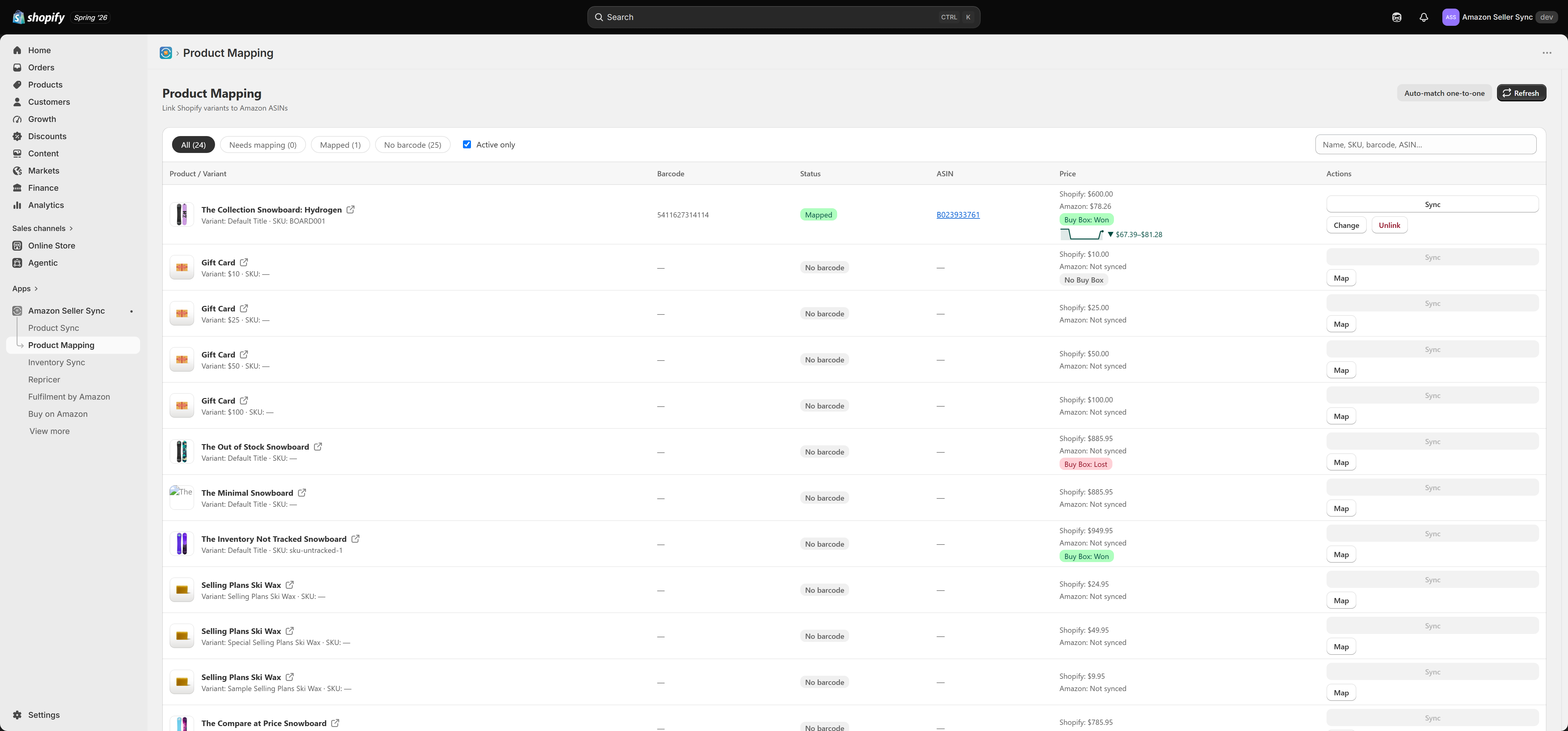
Product Mapping is where you tell Amazon Seller Sync which Amazon product each of your Shopify variants corresponds to. Once a variant is linked to an ASIN (Amazon's unique product identifier, a ten character code such as B08N5WRWNW), the app can fetch that product's live Amazon price and tell you whether you are winning the Buy Box, then write both back into Shopify.
Interactive walkthrough
Prefer to see it in action? Open the guided walkthrough, an animated click by click tour you can play automatically or step through yourself.
Mapping is not the same as Product Sync
These two screens are easy to confuse, and confusing them causes most of the support questions we get.
Product Mapping reads FROM Amazon. You point a Shopify variant at an ASIN that already exists on Amazon. It does not have to be your listing. It can be anyone's. The app then pulls that ASIN's lowest New offer price and Buy Box status into Shopify so your theme can display it and your reports can chart it.
Product Sync publishes TO Amazon. It takes your Shopify product and creates a real Amazon listing from it, with your title, images, attributes and offer price. That is a paid feature and a completely separate flow.
The consequence worth memorising: a product that is only mapped is never repriced. The Repricer only touches listings that you published through Product Sync, because those are the only listings the app owns an offer on. Mapping gives you visibility. It does not give you control of a price on Amazon.
Product Mapping is available on every plan, including Free. Free allows up to 10 mapped products.
Finding the products you care about
The filter pills across the top narrow the list:
- All shows every variant.
- Needs mapping shows variants that have a barcode but no ASIN yet. This is your work queue.
- Mapped shows variants that are already linked.
- No barcode shows variants that can never be matched automatically, because there is nothing to match on.
The Active only checkbox is on by default and hides draft and archived products, so you are not mapping things you do not sell. The search box matches on product name, SKU, barcode or ASIN, which is the quickest way to jump to one specific item.
Reading the status badges
Each row carries one status badge:
- Mapped means the variant has an ASIN and the app has successfully fetched a live Amazon price for it. This is the finished state.
- ASIN only means an ASIN is stored but no price has come back yet. Usually the variant has simply not been synced since it was mapped. Press Sync on the row. If it persists, the ASIN may have no live New offers on your home marketplace.
- Needs mapping means the variant has a barcode but no ASIN. Auto-match can probably handle it.
- No barcode means the variant has no barcode in Shopify. It must be mapped by hand.
Alongside the status you get the Buy Box badge for that ASIN: Buy Box: Won if your offer currently holds the Buy Box, Buy Box: Lost if another seller holds it, and No Buy Box if Amazon is not awarding one on that listing at all (common on listings with a single offer or on suppressed listings).
The price sparkline
Every mapped row shows a small sparkline of recent Amazon prices. It is drawn from the rolling price history the app stores on each sync, so it fills in over time rather than appearing complete on day one. A flat line means a stable listing. A jagged one means competitors are moving, which is a signal that your own offer needs watching. See Price sync for exactly what is stored.
Row actions
- Sync refetches the Amazon price and Buy Box status for that one variant immediately, without waiting for the next scheduled run.
- Map opens the mapping modal for an unmapped variant. On an already mapped row the same button reads Change, and it lets you point the variant at a different ASIN.
- Unlink removes the mapping. The variant stops being price synced and drops back to Needs mapping or No barcode.
Mapping by hand
Click Map on a row and the modal searches Amazon directly. You can search by:
- Barcode, which is the most reliable option, because a UPC or EAN identifies exactly one product.
- ASIN, if you already know it, for example from the Amazon product page URL.
- Product name, which is the fallback when there is no barcode. Be careful here. Name searches return near matches, and picking a similar but wrong product means you will sit and watch someone else's price forever.
If the search comes back with "No results. Try another term.", widen the term or try the barcode instead.
Pick the correct result and the ASIN is saved to the variant. Run Sync on the row to pull a price straight away.
Where to go next
- Auto-match one-to-one maps a whole catalogue by barcode in one pass.
- Price sync explains what the app fetches and which Shopify metafields it writes.
- Buy on Amazon uses the mapped ASIN to build storefront links.
Related Articles
Field mapping
Field mapping is where you tell the app which piece of Shopify data feeds each Amazon attribute. It is opened from the Sync settings card on Product Sync, and it applies to your whole catalogue. Most merchants never need to touch it. The defaults are ...Product Sync
Product Sync takes the products that already exist in your Shopify store and publishes them to Amazon as real, live listings. You do not retype anything into Seller Central. Shopify stays the place where you write and maintain your product content, ...Amazon product types
If you have pushed products and nothing appeared on Amazon, this is almost certainly why. Amazon requires a product type on every listing, and the app will not guess one for you. A product type is Amazon's way of saying what kind of thing you are ...Reviewing a product
Clicking Review on a row in Product Sync opens the product detail page. This is where you look closely at one product before it goes to Amazon, or after Amazon has said something about it. Everything you need for that one listing is on this page: the ...Mapping Shopify markets to Amazon marketplaces
Shopify has markets. Amazon has marketplaces. Settings > Markets is where you tell Amazon Seller Sync how the two line up, so the app knows which Amazon price belongs to which of your shoppers. There are two separate things on this tab, and they do ...