Buy on Amazon button
The Buy on Amazon button is a theme app block that puts an Amazon branded button on your Shopify product page. A shopper who clicks it lands on your Amazon listing for that product, in the marketplace that matches the market they are shopping from.
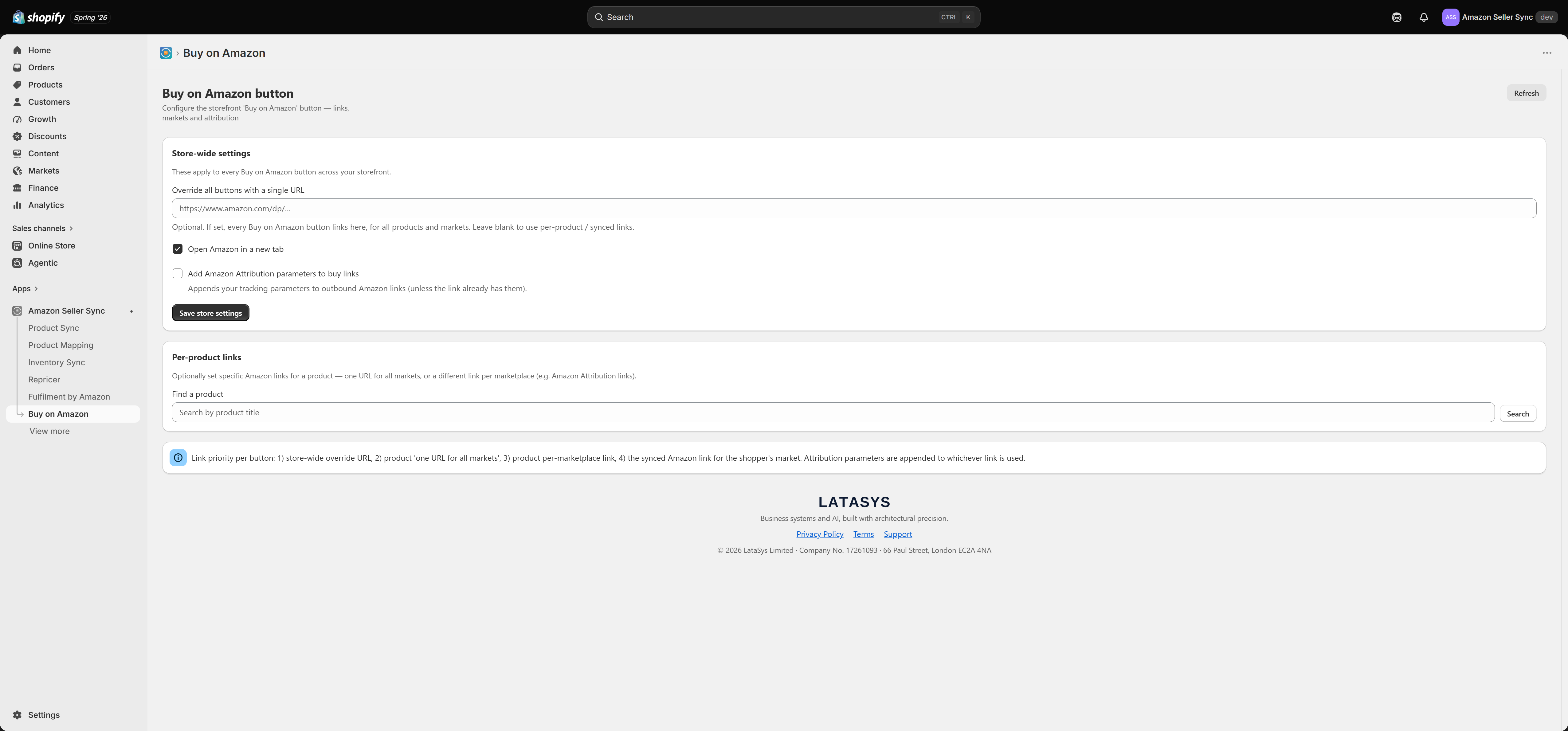
The button is included on every plan, including Free. There is nothing to unlock.
Interactive walkthrough
Prefer to see it in action? Open the guided walkthrough, an animated click by click tour you can play automatically or step through yourself.
Why put a button to Amazon on your own product page
It sounds counterintuitive, so it is worth being clear about what the button is for.
Some shoppers will not buy from an unfamiliar store no matter how good the offer is. They have Prime, they have a card on file, they trust the returns process, and they are going to search Amazon for your product anyway. Today that shopper leaves your product page, searches Amazon, and stands a good chance of landing on a competitor's listing rather than yours. The button turns that leak into a sale on your own listing.
The second reason is Amazon Attribution. If you add an attribution tag to your buy links, Amazon can credit the traffic you send. The tag is set in the app, not in the theme. See Buy button links and attribution.
Adding the button to your theme
- In Shopify admin, go to Online Store, then Themes, then Customise.
- In the template picker at the top of the editor, switch to a Product template.
- In the section list on the left, find your product information section and click Add block.
- Choose the Buy on Amazon block under the app blocks heading.
- Drag it into position. Directly under the Add to cart button is the usual choice, because it then reads as a secondary option rather than competing with your own checkout.
- Click Save.
Preview a product you have already mapped to an ASIN (Amazon's unique product identifier), so that you can confirm the button renders.
If the button is not showing
The button hides itself completely on the storefront when no URL resolves for that product and that market. It does not render an empty box, a placeholder, or a dead link. If the app cannot work out where to send the shopper, there is nothing to click.
My button is not showing
Nine times out of ten this is not a theme problem. It means no Amazon link exists for the product the shopper is looking at, in the market they are shopping from.
Work through these in order.
- Is the variant mapped to an ASIN? A link can only be synced for a variant that is linked to an Amazon product. See Product Mapping.
- Has price sync run since you mapped it? The Amazon link is written to the variant during price sync, alongside the price. Run Sync now on the Dashboard rather than waiting for the next scheduled run.
- Does a link exist for this shopper's market? A product can have a synced link for your home marketplace and none for a market you mapped more recently. See Market mappings.
- Did you set a per-product link source and leave the field blank? If you switched a product to a manual link source and never filled the URL in, nothing resolves.
If you need a button on every product no matter what, set Override all buttons with a single URL in the app. That points every button at one destination, such as your Amazon storefront page, so it always resolves.
Theme editor settings
Everything below is cosmetic. It changes how the button looks, never where it points.
- Button text. Defaults to "Buy on Amazon". Keep the word Amazon in it. Shoppers scan for it.
- Show icon. Adds the Amazon icon to the button.
- Style. Choose Amazon yellow (brand), Amazon orange (brand), Outline, or Custom colours. The two brand styles are the ones shoppers recognise instantly. Outline is the quiet option, for when you want your own Add to cart button to stay dominant. Custom colours unlocks the colour settings below.
- Colours. Background and text colour, used when the style is set to Custom colours.
- Size. Sets the button size so it sits correctly next to your theme's own buttons.
- Full width. Stretches the button across the full width of its container, which usually lines it up with your Add to cart button.
- Alignment. Left, centre or right, for when the button is not full width.
- Corner radius. Match your theme's own button rounding.
- Font weight. Match your theme's own button typography.
- Custom CSS and custom JavaScript. The escape hatch, for the cases the settings above cannot cover. Typical uses are tightening the spacing above the button or hiding it on one specific template.
What is configured in the app, not the theme
The theme editor controls appearance only. The two things that decide where the button goes and who gets credit for the click live in the app, on the Buy on Amazon screen:
- the link source for each product, and any store-wide override URL
- whether Amazon opens in a new tab
- your Amazon Attribution tag and any extra URL parameters
Those are covered in Buy button links and attribution. If you also want to show the live Amazon price next to the button, see the Amazon Price block.
Related Articles
Buy button links and attribution
The Buy on Amazon screen in the app decides two things: where each Buy on Amazon button sends the shopper, and whether Amazon can credit you for the click. The look of the button is set in your theme instead. See Buy on Amazon button. Most stores ...Buy Box repricer
The Repricer screen adjusts the prices of your Amazon listings on a schedule, with the goal of winning the Buy Box without ever pricing you into a loss. It is a paid feature, available on the Growth plan and above. Interactive walkthrough Prefer to ...Buy Box performance
The Buy Box is the "Add to basket" position on an Amazon product page. When several sellers offer the same product, Amazon awards that button to one of them, and the overwhelming majority of sales on that listing go to whoever holds it. If you do not ...Amazon Seller Sync
Interactive walkthrough Prefer to see it in action? Open the guided walkthrough, an animated, click-by-click tour you can play automatically or step through yourself. Amazon Seller Sync is an embedded Shopify app that joins your Shopify store to your ...Amazon Price block
The Amazon Price block is a theme app block that shows the current Amazon price for the product a shopper is looking at, in the marketplace that matches their market. It is the storefront face of price sync: the app pulls the price from Amazon, and ...