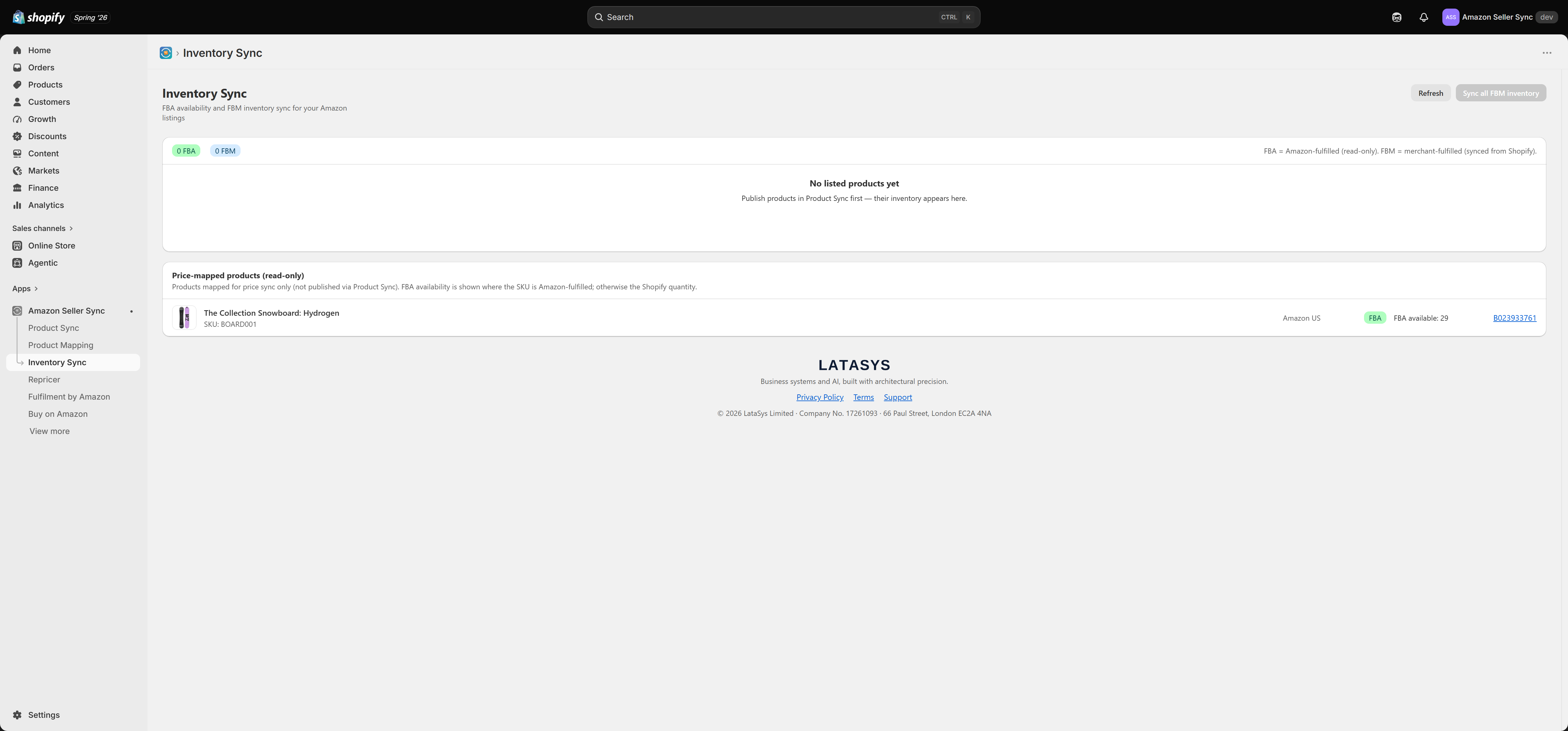
Inventory Sync
Interactive walkthrough
Prefer to see it in action? Open the guided walkthrough, an animated, click-by-click tour you can play automatically or step through yourself.
Inventory Sync is the screen that keeps your Amazon stock levels and your Shopify stock levels in step. Before you use it, it is worth being clear about the two ways stock can sit on Amazon, because the app behaves completely differently for each.
FBA and FBM, in plain terms
FBA stands for Fulfilment by Amazon. You have shipped units into Amazon's warehouses, Amazon holds them, and Amazon picks, packs and ships them when an order comes in. The stock is physically in Amazon's hands.
FBM stands for Fulfilment by Merchant. The stock sits in your own warehouse, your shop, or with your own logistics provider. When an Amazon order comes in, you pack it and ship it yourself.
You do not tell the app which is which. It detects the fulfilment type automatically, per SKU. If the SKU appears in your Amazon FBA inventory, it is treated as FBA. If it does not appear there, it is treated as FBM. Every row on the page is labelled accordingly.
The asymmetry you need to understand
This is the most important idea on the page, and it is the one that catches people out.
FBA is read-only in this app. For an FBA SKU, the app shows you what Amazon reports it is holding, both the available quantity and the total, sitting next to your Shopify quantity so you can compare them at a glance. It writes nothing back into Shopify. Your Shopify inventory numbers are left exactly as you set them. Think of it as a window onto Amazon's warehouse rather than a controller of your Shopify stock.
FBM stock is pushed from Shopify to Amazon. For an FBM SKU, Shopify is the master record. Whatever quantity you hold in Shopify is sent up to Amazon so your Amazon listing reflects the stock you actually have. The flow runs in one direction only, from Shopify out to Amazon.
So if you are looking at an FBA row and wondering why your Shopify quantity has not changed to match the Amazon figure, that is deliberate. Amazon owns that stock, and the app does not overwrite your Shopify records with it.
Two things merchants often assume, incorrectly
The quantity pushed is your Shopify quantity, exactly. It is sent verbatim, with the only adjustment being that a negative figure is floored at zero. There is no buffer and no safety-stock setting in this app. If you want to hold back a few units as a cushion against overselling, manage that in the quantity you keep in Shopify. The app will not reserve units for you, and there is no setting to switch on.
There is no scheduled FBM inventory sync. The app does not run an inventory job every few hours in the background. FBM stock is pushed in real time instead, driven by a Shopify webhook that fires within seconds of a stock change. See How FBM stock reaches Amazon for the full picture.
What is on the page
Sync all FBM inventory
The Sync all FBM inventory button pushes the current Shopify quantity for every FBM SKU the app is tracking, in one go. It is a catch-up tool. Because the webhook already handles day to day changes, you will mostly reach for this after a bulk stock edit, after a stocktake, after a CSV import, or when you have just started using the feature and want everything brought into line at once.
FBA SKUs are skipped by this button, for the reason given above.
Sync FBM, per product
Each product row also has its own Sync FBM button. This pushes that single SKU's Shopify quantity to Amazon immediately. Use it when you have corrected one item and want to confirm the push lands, or when you are investigating why one particular listing looks wrong on Amazon.
Collapsible product groups
Products are shown as collapsible groups. The product sits at the top level, and expanding it reveals its variants with their SKUs, fulfilment type, Amazon quantity and Shopify quantity. This keeps a catalogue with many variants readable: collapse the groups you do not care about, and expand the one you are chasing.
Price-mapped products (read-only)
Below the main list sits a second card, Price-mapped products (read-only). These are products you have linked to an Amazon ASIN (Amazon's unique product identifier) on the Product Mapping page for price sync only. They have not been published to Amazon as listings through Product Sync, so the app has no listing of its own to push stock into. They appear here for visibility, and no inventory is written for them in either direction.
If you want a price-mapped product to take part in inventory sync, publish it through Product Sync first.
Plan requirement
Inventory Sync is a paid feature, available on Growth and above. It is not part of the Free plan. See Plans and billing for what each plan includes.
Related articles
- How FBM stock reaches Amazon, which explains the timing and what to check when stock is not moving
- Product Sync, which publishes products to Amazon as listings in the first place
- Fulfilment by Amazon, if you want Amazon to fulfil your Shopify orders out of your FBA stock
Related Articles
Suggested inventory
Suggested inventory answers one question: which of your FBA products are about to run out, and how many units does Amazon think you should send. It is one of the four views on the Analytics screen, and like the rest of Analytics it is available on ...Product Sync
Product Sync takes the products that already exist in your Shopify store and publishes them to Amazon as real, live listings. You do not retype anything into Seller Central. Shopify stays the place where you write and maintain your product content, ...Amazon Seller Sync
Interactive walkthrough Prefer to see it in action? Open the guided walkthrough, an animated, click-by-click tour you can play automatically or step through yourself. Amazon Seller Sync is an embedded Shopify app that joins your Shopify store to your ...Price sync
Price sync is the heart of Amazon Seller Sync. For every variant you have linked to an ASIN on the Product Mapping page, the app asks Amazon what that product is currently selling for and whether you are winning the Buy Box, then writes the answers ...How FBM stock reaches Amazon
"I changed the stock in Shopify, so why has Amazon not updated?" is one of the questions we are asked most often. This article explains exactly when your merchant-fulfilled (FBM) stock is pushed to Amazon, so you can tell the difference between a ...